
A message says a supplier has shared an invoice. Its link goes through a URL shortener, and the destination is not obvious from the message. You need to decide whether it is phishing without turning your everyday browser into the test environment. That decision starts before anyone opens the link.
A suspicious URL is evidence, but it may also contain a personal identifier or a one-time access token. This guide separates passive checks from controlled browsing, explains what remote isolation can and cannot do, and shows how to record findings without claiming that a single scanner result proves safety.
Triage before opening the link
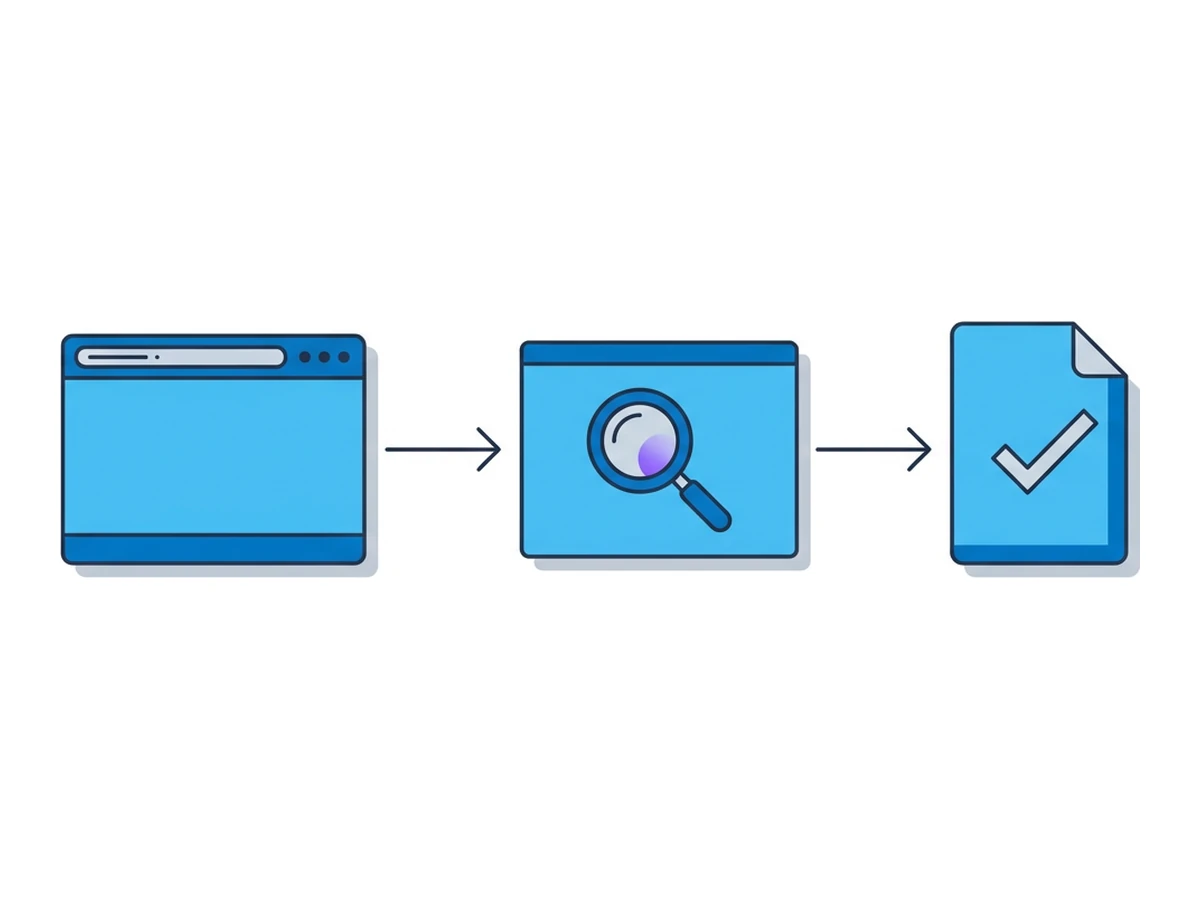
Start with the original message, not the web page. Preserve the sender, headers, visible link text, actual URL and time received. Ask whether anyone followed the link, entered credentials or downloaded a file. Those answers determine whether this is only a suspicious message or already an incident.
Read the URL as data. Check the scheme, hostname, path, query and fragment without visiting it. A familiar brand in the path does not make an unrelated hostname trustworthy. Short links and encoded redirects need more care: expanding them can contact the destination, so use an approved investigation tool rather than your normal browser.
Choose the next check. Existing reputation reports can add context without a new submission. A live URL scanner may visit the page and create a shareable record; a remote browser lets an analyst inspect what appears on screen. Neither result is a malware verdict. Google explains that Chrome Safe Browsing warnings depend on the selected protection level and available threat data in its protection-level guide.
Escalate based on impact. If someone entered credentials, used MFA or ran a download, follow your incident-response process promptly. Waiting for a scanner to label the URL malicious does not undo account or device exposure. CISA's phishing guidance likewise recommends reporting suspicious messages and avoiding their links during ordinary use.
What each checking method misses
A reputation lookup, URL scanner and isolated browser answer different questions. Treat their gaps as part of the result, especially when a link is new, personalized or time-limited.
Reputation is conditional. A clean result may mean no one has reported the destination yet. Redirects and pages can also vary by time, visitor or location. Chrome Safe Browsing supplies useful warnings, but its normal and enhanced modes make different checks and share different data with Google. Record which check you actually used.
Public scans disclose the URL. Query strings can contain access tokens, customer names or private document links. The urlscan.io visibility guide distinguishes Public, Unlisted and Private scans; Unlisted still reaches vetted Pro customers. VirusTotal says its Private Scanning keeps submissions outside its shared threat corpus, unlike standard submissions. Check your organization's data policy before submitting any full URL or file.
Browsing creates interaction. A site can see a remote browser's exit address, receive requests, set cookies and react to clicks. Isolation moves web execution away from the analyst's device; it does not make the analyst anonymous or certify the page. Saved profiles can retain browser state, and closing a viewer tab does not by itself prove a Browser.lol session has ended.
Set up controlled browsing
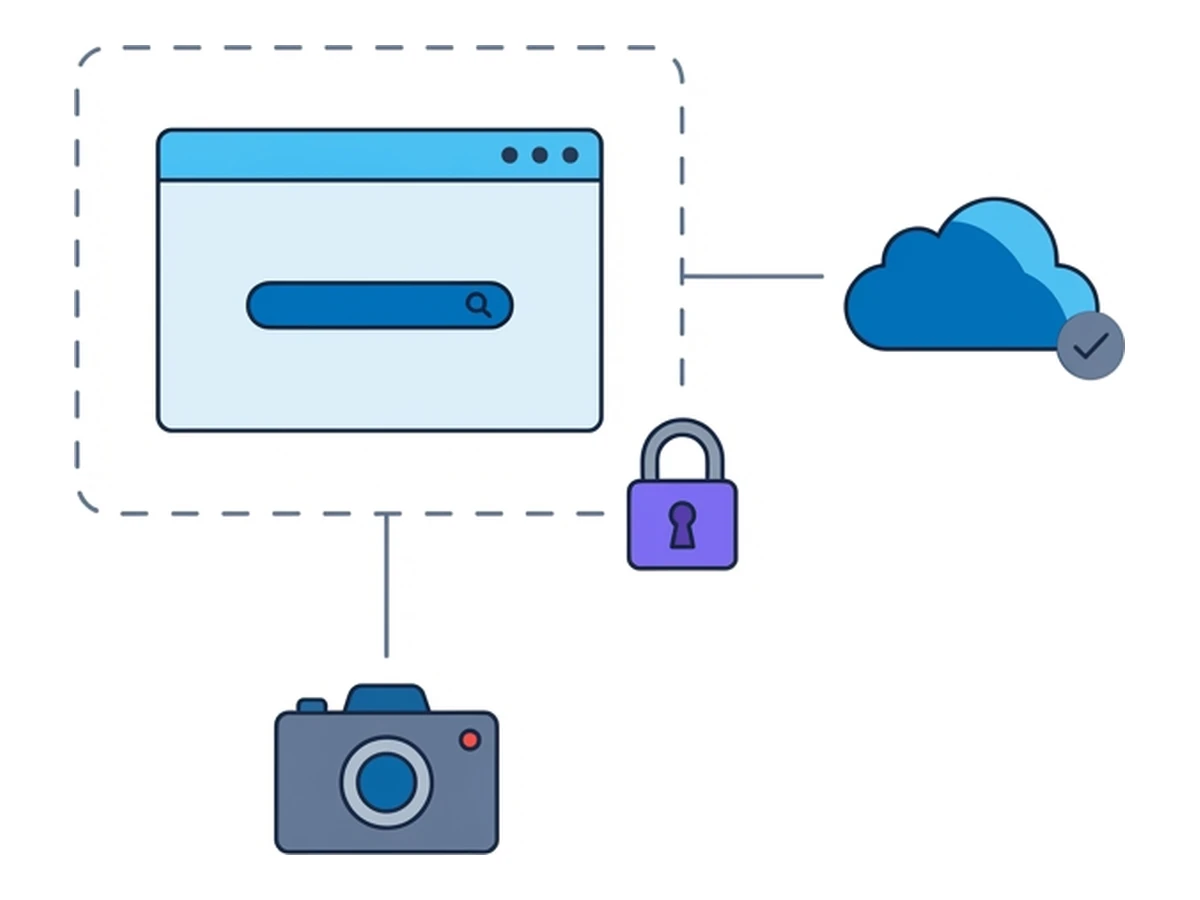
Use an environment selected for the risk and your evidence rules. A remote browser reduces exposure from page execution on the analyst's device, but it is one control in a wider workflow. Decide in advance what you will capture and where it may be stored.
Network path. In Browser.lol, the target site is contacted from the remote browser's exit, while the analyst's device connects to Browser.lol to receive the stream and send input. This changes which address the target site sees. It does not hide activity from the browser service, guarantee a particular exit location or replace controls on the analyst's local connection.
Session choice. Start a temporary session rather than a saved profile if you do not need state between visits. Use an available browser image that fits the test. Do not sign in with a personal or production account, and do not move a suspicious download to your own machine. Some sites detect analysis environments; a page that looks harmless in one visit may behave differently for a victim.
Evidence plan. Browser.lol supplies a streamed browser, not automatic session recordings, packet captures or SIEM exports. Take notes and screenshots with approved tools if your policy allows them. Record the time, URL, observed redirects and actions taken. If you need a defensible network trace or malware detonation, use the dedicated tools your team has approved for those tasks.
A repeatable investigation process
Use a sequence that lets you stop as soon as the evidence is sufficient. Escalate immediately if a person has already entered credentials or opened a downloaded file.
- 1
Triage the report
Preserve the original message and determine whether anyone clicked, signed in or downloaded a file. Keep bearer links, account tokens and browser session IDs out of ordinary tickets. - 2
Inspect the URL before clicking
Copy the URL as text without opening it. Compare the actual hostname with the claimed sender and check existing reports. Do not expand a short link in your everyday browser. Decide whether a third-party scan may receive the full URL. - 3
Interact methodically
If live viewing is necessary, start a temporary remote session and enter the URL there. Watch redirects and form requests. Do not enter real credentials, approve MFA prompts or run downloaded files as part of a quick link check. - 4
Extract indicators
Note the final domain, visible prompts and any download offered. Record only data you actually observed; screenshots and browser developer tools may help, but neither produces an automatic forensic record in Browser.lol. - 5
Tear down and escalate
End the remote session using its session control. Put the evidence and its limitations in the case record. Escalate suspected credential theft or executed malware through your incident-response process, even if reputation checks were inconclusive.
What to record
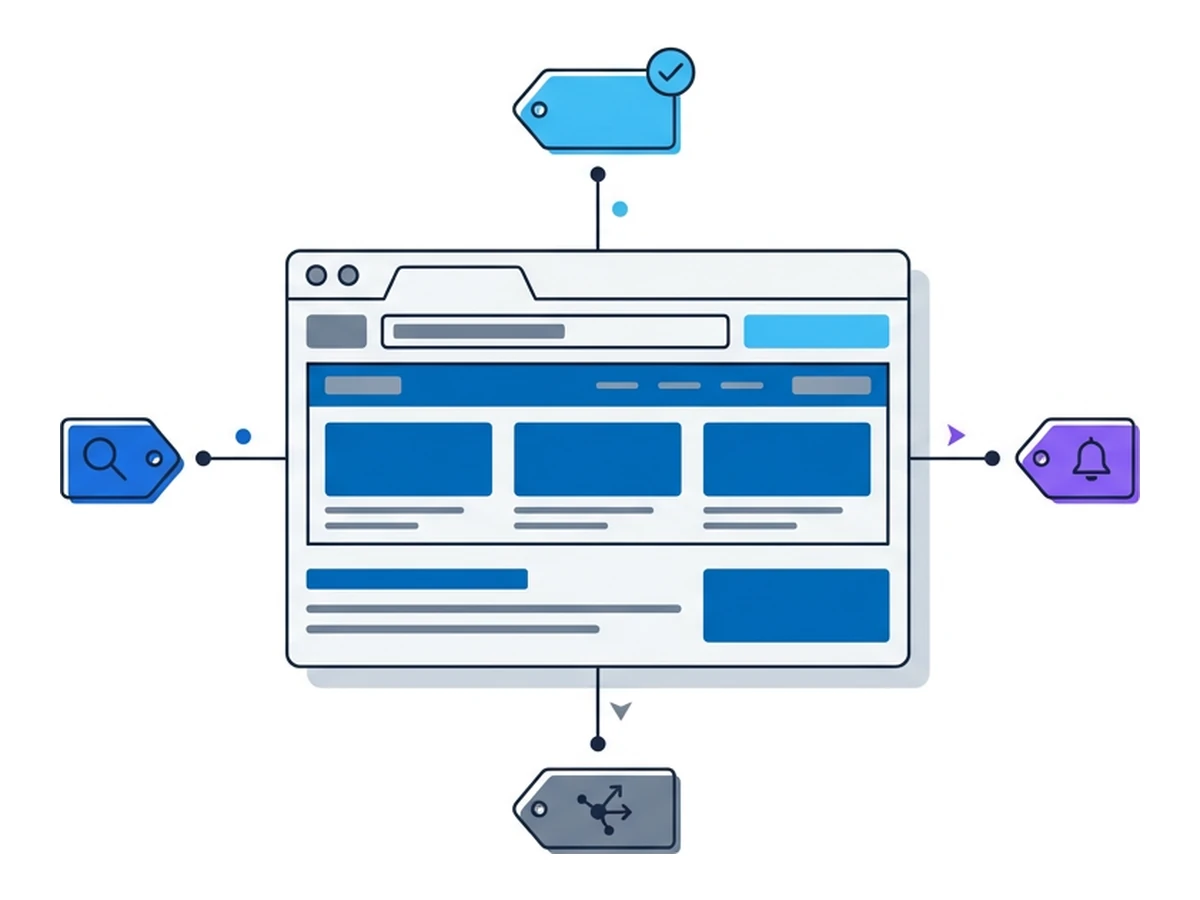
An indicator is useful only when you can say where it came from. Distinguish the message's original URL from redirects observed by a scanner or browser, and label inferred details separately from what you directly saw.
Infrastructure signals can include the original and final hostnames, observed redirect chain, DNS answers and certificate details. IP ownership or registration dates can provide context, but a shared host or CDN address does not identify the attacker. Results may change across time and network locations.
Behavioural signals include credential forms, MFA requests, download prompts, impersonated branding and redirects after a click. If a dedicated scanner provides HTTP transactions or a DOM snapshot, attribute those records to that scanner. Its visit may differ from what the reporting user saw; urlscan.io documents its separate result and screenshot APIs.
Turn observations into a report
A short report should let the next analyst reproduce your reasoning. Include the original report, checks performed, observation time and tool or browser used. State what you could not verify, including pages hidden behind login, geography or a single-use link.
Record observed domains and behaviour separately from hypotheses about actor or intent. Add screenshots only if their contents can be shared with the case audience. If you distribute findings beyond the team, use your organization's handling rules; FIRST's Traffic Light Protocol explains how TLP labels limit further sharing. Do not paste tokenized links or session credentials into broad feeds.
Finish with a decision: block a confirmed destination, watch for related activity, request more evidence, or close as inconclusive. Tell the reporter what action to take if they clicked. A phishing-looking page alone does not prove that data was submitted or that a device was compromised.
Fit the process into the SOC
Make the triage questions and evidence fields part of the ordinary ticket. Give analysts a clear rule for when a reputation lookup is enough and when controlled browsing or incident response is warranted.
If your team builds automation, use approved APIs and keep case references in your own system. Browser.lol provides session APIs, but it does not ship a ticketing-system button, incident tagging or automatic evidence export. Check the access rights and data handling of any integration before it processes a reported URL.
Define escalation triggers in advance: a user entered credentials, approved an unexpected sign-in, ran a downloaded file, or the case matches a known campaign. An offered download is different from an executed payload; a displayed form is different from confirmed credential theft.
Review a sample of completed cases against the original reports and available evidence. Look for missed redirects, overconfident verdicts and sensitive URLs sent to public scanners. Browser.lol does not provide a recording to replay; retain approved evidence at the time of investigation if later review is required.
Measure the process
Choose measures your team can collect from its own case records. They should reveal gaps, not imply that isolation makes every investigation safe.
from report to first triage decision
cases with source, checks and limits recorded
cases where someone clicked or entered data
Measure these over time using consistent definitions. A faster verdict is not better if it misses a user who submitted credentials. Likewise, a remote browser can reduce one kind of endpoint exposure without proving that every malicious page or download was contained.
Put the workflow to work
Start with passive triage and the link's disclosure risk. Move to controlled browsing only when it will answer a specific question, and use dedicated malware-analysis tools for files or forensic collection.
Browser.lol can provide a remote browser for that viewing step. End the session explicitly, record what you observed with your approved tools, and keep the report honest about what the environment could not show.
Need an isolated session for your next task?
Open an isolated desktop browser and get started in your browser.
Start a SessionNo browser installation required • Features vary by plan