
The Great Suspender made idle tabs less demanding on memory. In 2020 its original developer handed maintenance to someone whose identity was not publicly clear. Users then noticed that the Chrome Web Store package had diverged from the public source and contacted third-party servers. In February 2021, Chrome removed the extension with a malware warning. A tool people had chosen for convenience had become a supply chain concern.
The point is not that every extension can see everything. Its reach depends on the permissions you grant and the sites where it can run. The risk is that an extension can receive updates after you have learned to trust it. A new maintainer, a compromised publisher account, or a dependency change can alter what that trusted code does. The Great Suspender's public incident thread records the warning signs and the limits of what investigators could establish at the time; the original maintainer's announcement documents the handover.
What an extension actually sees
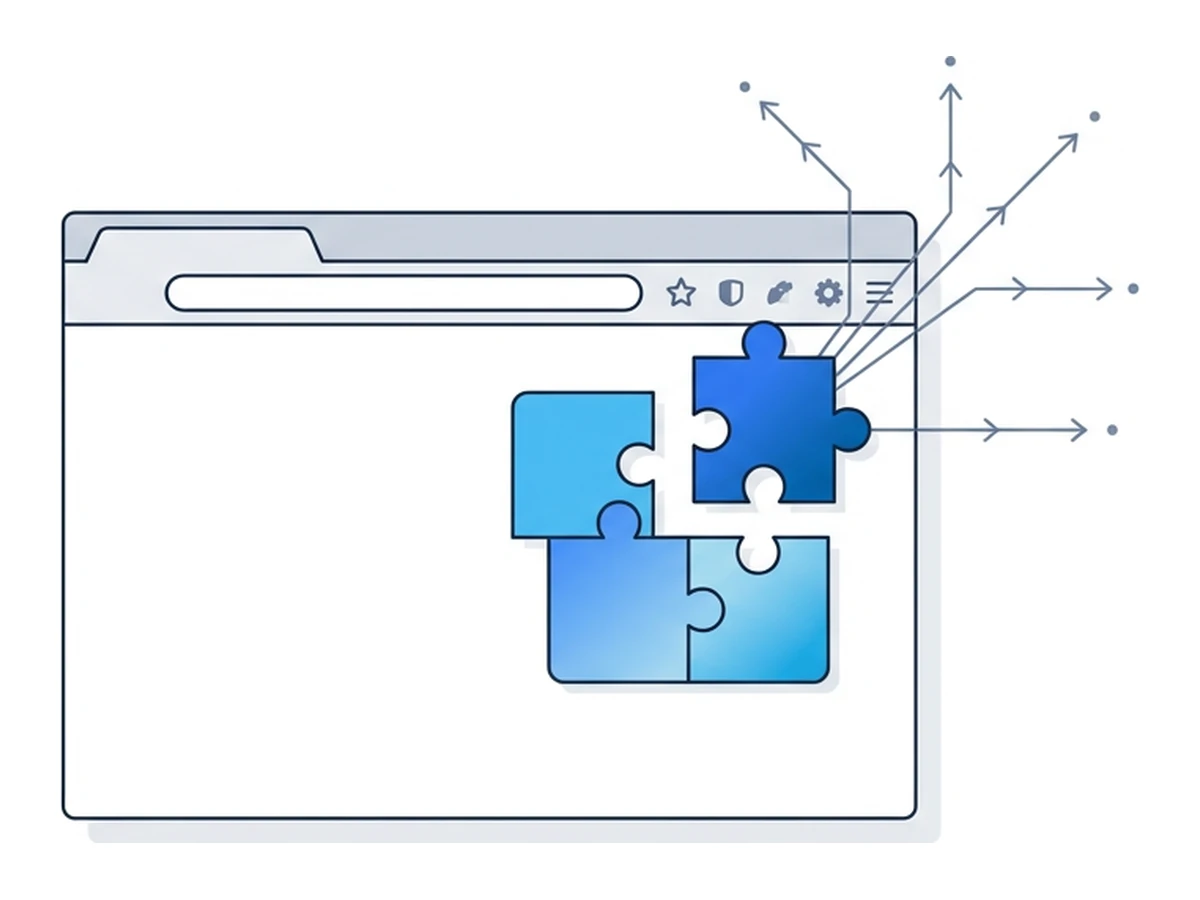
An extension with broad access to websites can run a content script on matching pages. That script can read and change page content, including text entered into ordinary form fields. Access is bounded by granted hosts, browser restrictions, and the extension's actual code. It does not mean every extension can read every password, every cookie, or the browser's privileged pages. Mozilla's content-script documentation explains the page boundary.
Other powers require other permissions. For example, the cookies API needs both its own permission and access to the relevant site. Request observation, tab metadata, and script injection have their own rules. These capabilities can enable useful tools such as password managers, blockers, and translators. They also make an overprivileged or compromised extension consequential. Read the permission list as a set of possible capabilities, not proof that the developer uses every one of them.
Prompts differ across browsers and permission types. Chrome says an update adding a permission with a new warning disables the extension until you accept it. Firefox shows Manifest V3 host permissions at installation, but its documentation says new host permissions requested by an update are not shown in the same way. Optional permissions may be requested later. Review granted site access and changes over time instead of assuming one installation prompt covers the extension forever. See Chrome's warning rules and Firefox's host-permission rules.
How extensions become attack surface
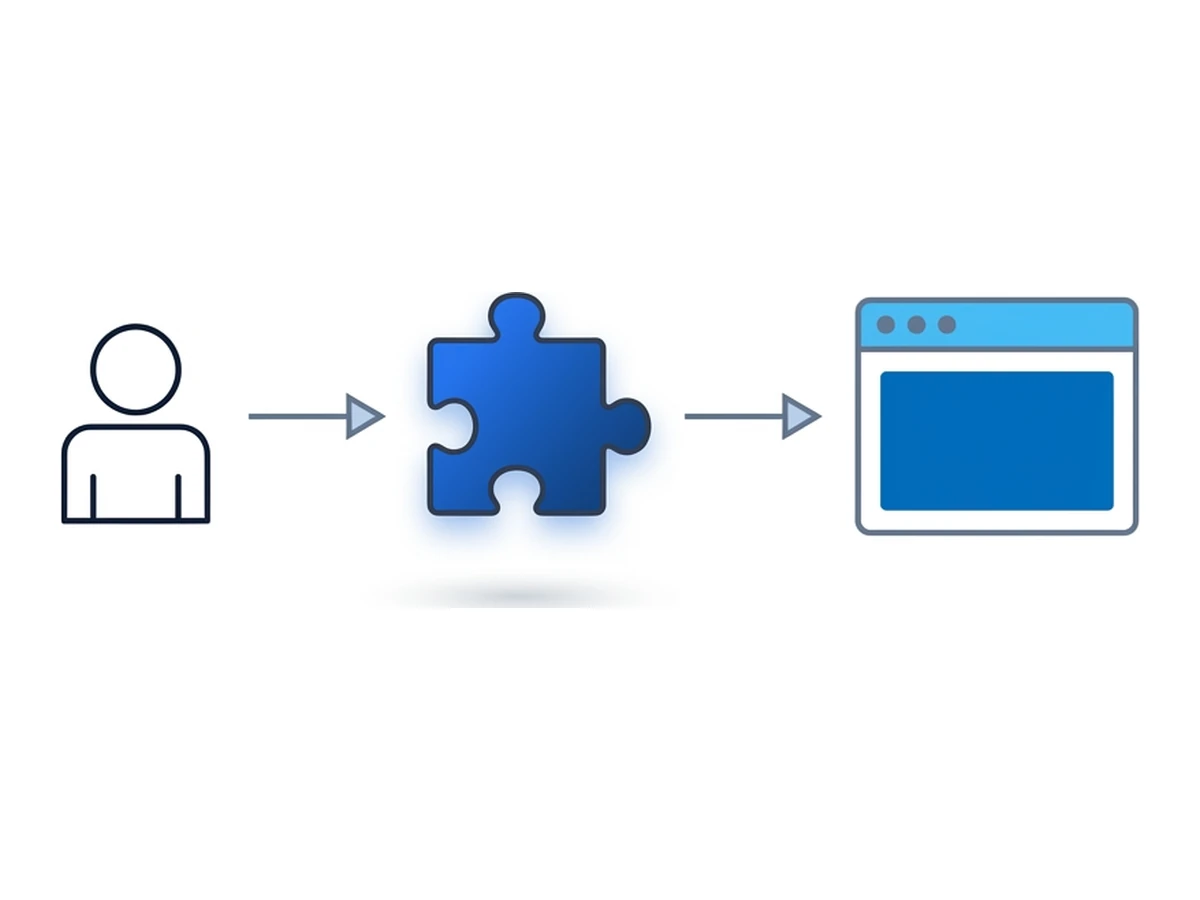
An extension is published by someone, built from code and dependencies, and then delivered through a store or another update channel. Each handoff is a place where the code you receive can diverge from the code you meant to trust.
Change of ownership. A new owner inherits the extension's installed base and existing grants. That can be a legitimate handover, but it deserves fresh scrutiny. In 2020 the maintainer of Nano Adblocker and Nano Defender announced that the Chrome Web Store listings were no longer under his control. The later behavior of the Chromium builds raised malware concerns; the independent Firefox ports were a separate case.
Publisher-account compromise. Attackers can target the person who uploads releases rather than attack the browser itself. In December 2024 a phishing campaign gained publishing access to Cyberhaven's Chrome extension, and a malicious update appeared in the store. This was not evidence that every extension in the store was affected. Cyberhaven's public incident notice documents its response.
Build dependencies. Libraries and build tools may come from other maintainers. If a dependency is compromised and bundled into an extension update, the published extension can carry that code even when its own developer did not write it. The incidents above involved other routes; dependencies are another point to inspect. Developers should pin and review dependencies and examine the package that is actually published, not just the source repository.
What the documented cases show
The Great Suspender illustrates a handover followed by a mismatch between the public source and the distributed build. Nano Adblocker and Nano Defender illustrate why a familiar name may refer to different browser builds and maintainers. The original Nano maintainer explicitly warned that he no longer controlled the Chrome listings. Neither case proves that every ownership transfer is malicious; both show why the publisher and the shipped package matter.
Cyberhaven illustrates a different route: the developer can remain legitimate while an attacker gains publishing access. The affected update then arrives through the familiar store channel. Numbers circulated for the wider campaign vary by investigation and date, so they are not a reliable measure of any one user's exposure. The practical question is whether a particular extension version ran in a browser that could access sensitive sites.
Check which sites and APIs an extension can use
Check who controls updates and whether that changed
Investigate the exact build involved in an incident
Audit the extensions you actually use
A short review can reduce unnecessary access. Repeat it after ownership changes, major updates, or a security notice.
- 1
Open your browser's extensions page
Use chrome://extensions in Chrome, about:addons in Firefox, or edge://extensions in Edge. Check the extensions currently installed in each browser profile you use. Disabled add-ons still deserve a decision: keep them for a reason or remove them. - 2
Remove extensions you no longer need
An unused extension adds code and possible permissions without providing a current benefit. Before removing one, check whether it holds data or settings you need to export. A tool used only occasionally may be better installed only when needed, or granted access only when you click it. - 3
Review the publisher, versions, and permissions
Check the store listing, developer identity, update history, privacy disclosures, and granted sites. A change of owner warrants investigation; an old update date alone does not prove insecurity, and a recent update does not prove safety. If a security report names a version, compare it with the version installed in your browser. - 4
Restrict site access where possible
Chrome can let you choose specific sites or run an extension on click. Other browsers offer their own permission controls. Give an extension only the sites it needs, then check that it still works. Keep sensitive sites out of broad access where your browser supports that restriction.
A safer default setup
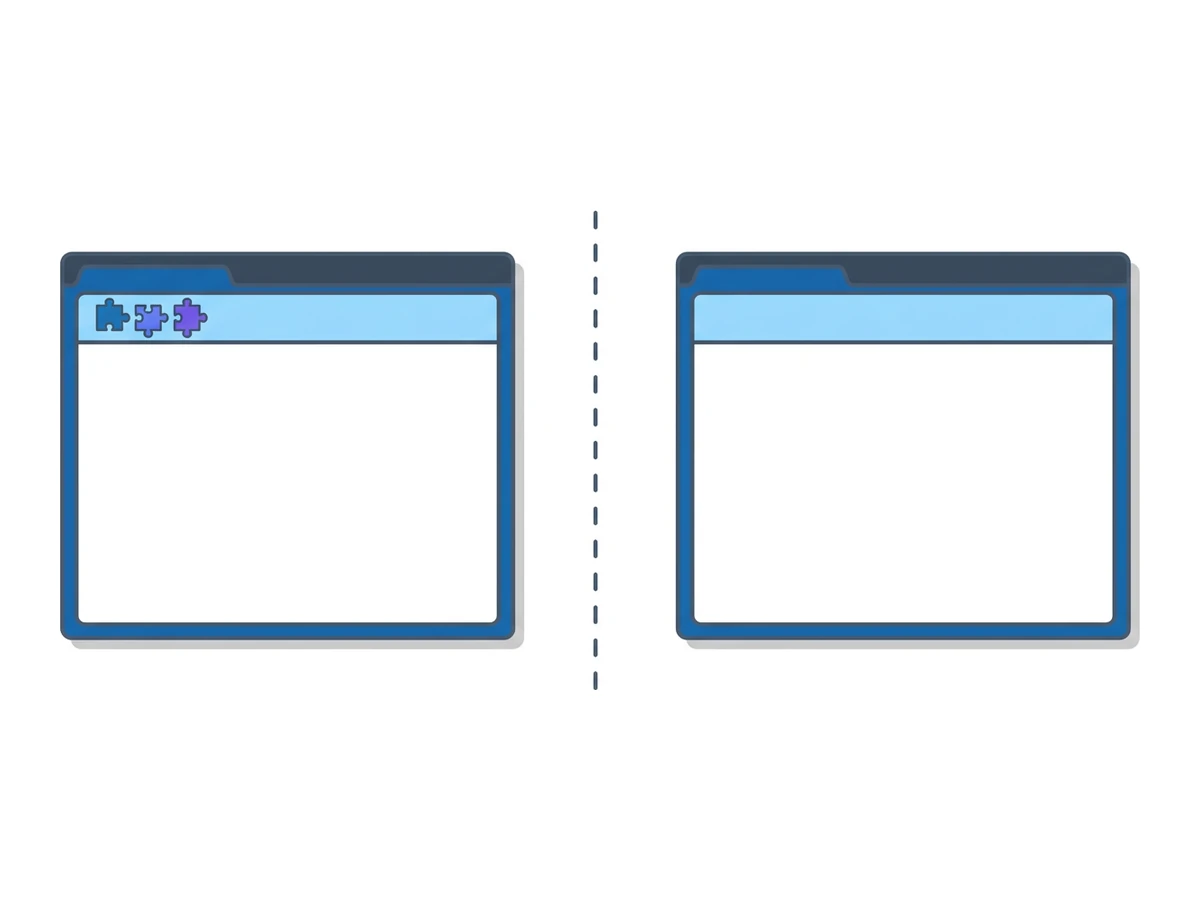
You do not have to remove every extension. A password manager or blocker may provide real value, provided you understand its grants and keep it updated. For tasks that do not need add-ons, use a separate browser profile or a fresh remote browser session without extensions. This removes extension code from that particular browsing environment; it does not make the activity automatically private or risk-free.
Keep only the add-ons you need in your everyday browser and review their site access periodically. Use an extension-free environment for a sensitive task when the required site and workflow allow it. A remote browser moves page execution away from your device, but credentials you enter, files you transfer, and the connection to the remote service still matter. Check the environment's actual extension state before relying on that separation.
Need an isolated session for your next task?
Open an isolated desktop browser and get started in your browser.
Start a SessionNo browser installation required • Features vary by plan