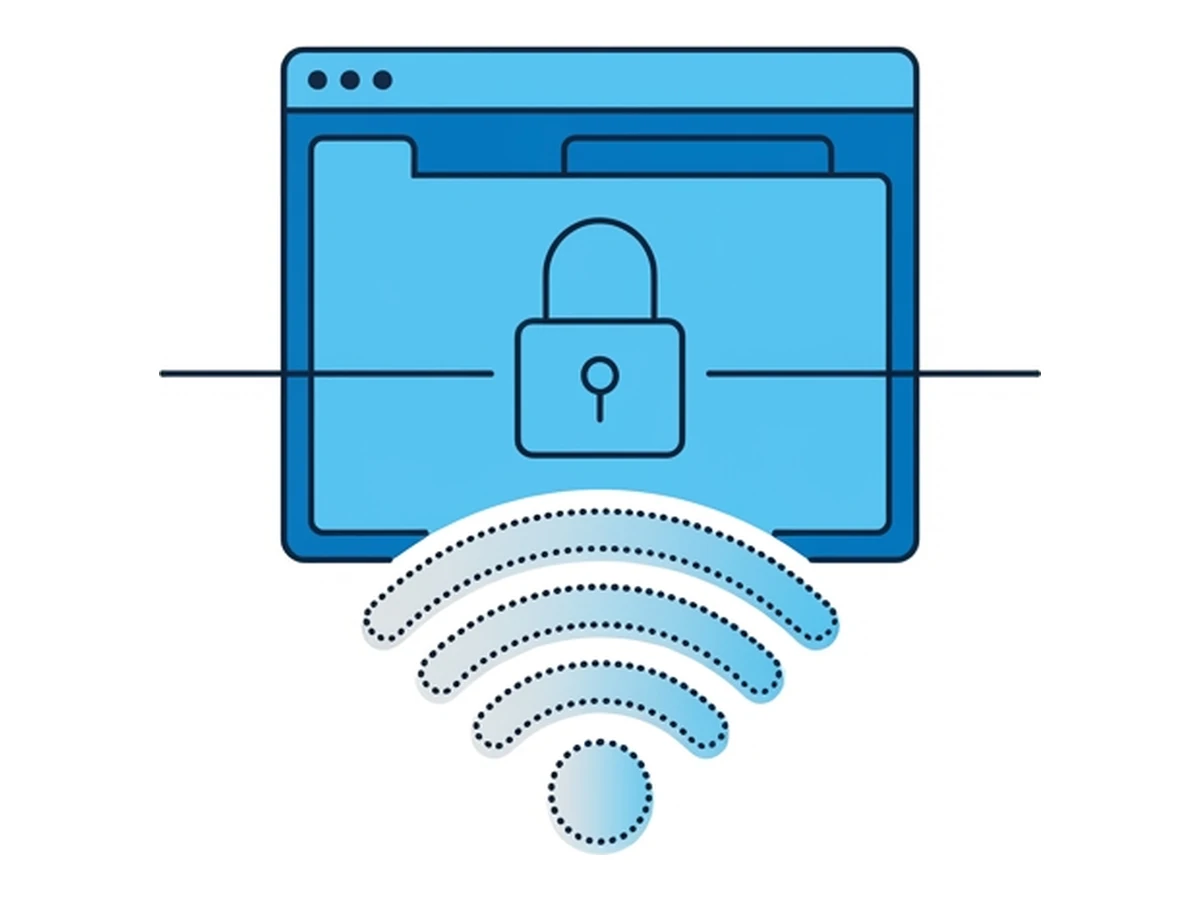

Public Wi-Fi does not give everyone nearby a view of your banking password. When your browser establishes a valid HTTPS connection, the network cannot read or silently alter the page contents in transit. Yet the network still matters: it can present a fake sign-in page, interfere with insecure traffic, or reach services your device exposes. The useful question is which part of the connection you are trusting.
The US Federal Trade Commission notes that widespread encryption has made ordinary use of public hotspots much safer than it once was. That does not make a hotspot trustworthy. Check the network name, keep your device's sharing protections on, and verify the site before entering credentials.
What HTTPS protects
With a valid HTTPS connection, TLS authenticates the destination and protects the confidentiality and integrity of data between your browser and that site. A nearby observer should not be able to read a password or payment detail sent inside that connection or change the response without detection. HTTPS does not prove that the site itself is honest: a phishing page can have a perfectly valid certificate. MDN's TLS guide explains the distinction.
Browsers can upgrade connections to HTTPS and warn when a site is insecure. HSTS prevents an HTTP downgrade for sites the browser already knows are protected, including preloaded sites; it does not cover every site. MDN documents its scope. DNS-over-HTTPS can encrypt DNS lookups when enabled and used by the browser or device, but it is not universal and does not hide all connection metadata.
A hotspot operator may still see that your device is connected, traffic timing and volume, and sometimes the destination hostname through DNS or other connection metadata. Plain HTTP traffic remains exposed to interception or alteration. Do not bypass a certificate warning to reach a sensitive site. For an HSTS-protected site, browsers do not even offer a bypass.
The real risks on public Wi-Fi
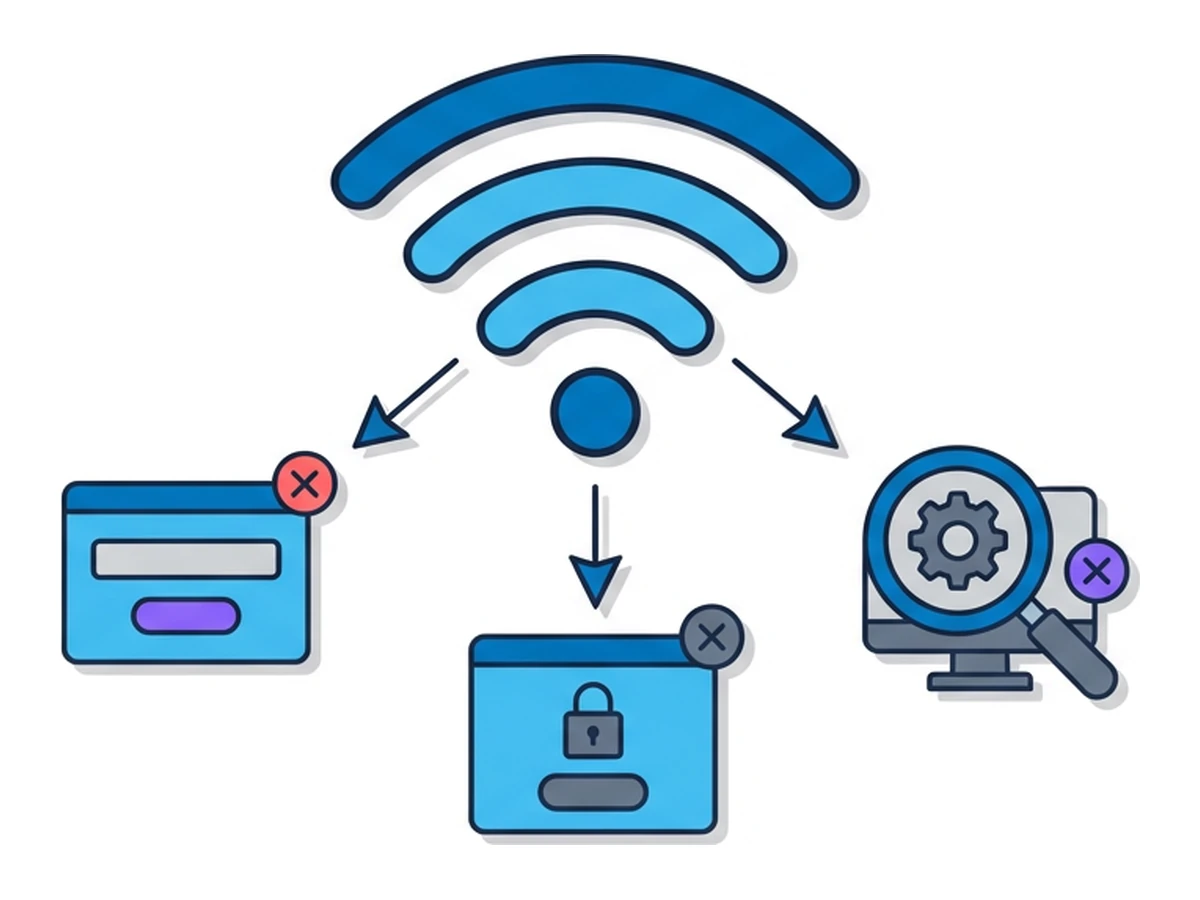
Deceptive sign-in pages. Airports and hotels may use a captive portal to show terms or request access details. A fake hotspot can imitate that page and ask for an email address, a room number, or unrelated account credentials. Google documents legitimate captive portals; their existence alone is not a warning sign. Verify the network with the venue and inspect the portal's address before supplying information.
Exposed device services. If file sharing, remote access, or another service listens on the local network, other devices may be able to reach it, depending on hotspot isolation and firewall rules. Check your firewall and sharing settings. On Windows, the public network profile is designed for networks you do not trust.
DNS and plain HTTP interference. A network that handles unencrypted DNS may observe or tamper with lookups. Encrypted DNS can reduce that exposure when your device actually uses it, as MDN explains. Altered DNS alone should not let an attacker forge a valid HTTPS certificate for the site you intended to reach, but plain HTTP pages and redirects remain vulnerable.
Unencrypted logins. Some older or local web interfaces still use HTTP. Anything sensitive entered there may be exposed to an on-path observer. Check that the intended site uses HTTPS before signing in, and do not dismiss a browser warning just because the page looks familiar.
Fake hotspots and certificate prompts
An "evil twin" imitates a legitimate access point's network name. A device may connect if its saved-network settings allow it; a stronger signal alone does not guarantee that outcome. The operator can control the network path, but a valid HTTPS connection still protects its contents. CISA describes the access-point impersonation risk. Ask staff for the exact network name rather than trusting a familiar-looking entry.
A fake portal can ask for credentials or instruct you to install a root certificate. Do not install a certificate from an unverified hotspot. A trusted root changes which servers your device can authenticate; installing an attacker-controlled root can enable interception of HTTPS traffic. Some managed corporate networks use legitimate custom roots, so verify such a request with your administrator through a separate channel. Google calls root-certificate installation security sensitive.
Apps that fail to validate certificates properly can also expose traffic. Do not assume every app has the same protections as an up-to-date browser; keep apps updated and use trusted software. A certificate warning may reflect a malicious network or an ordinary configuration error. Either way, stop and investigate before entering credentials.
VPNs and remote browsers
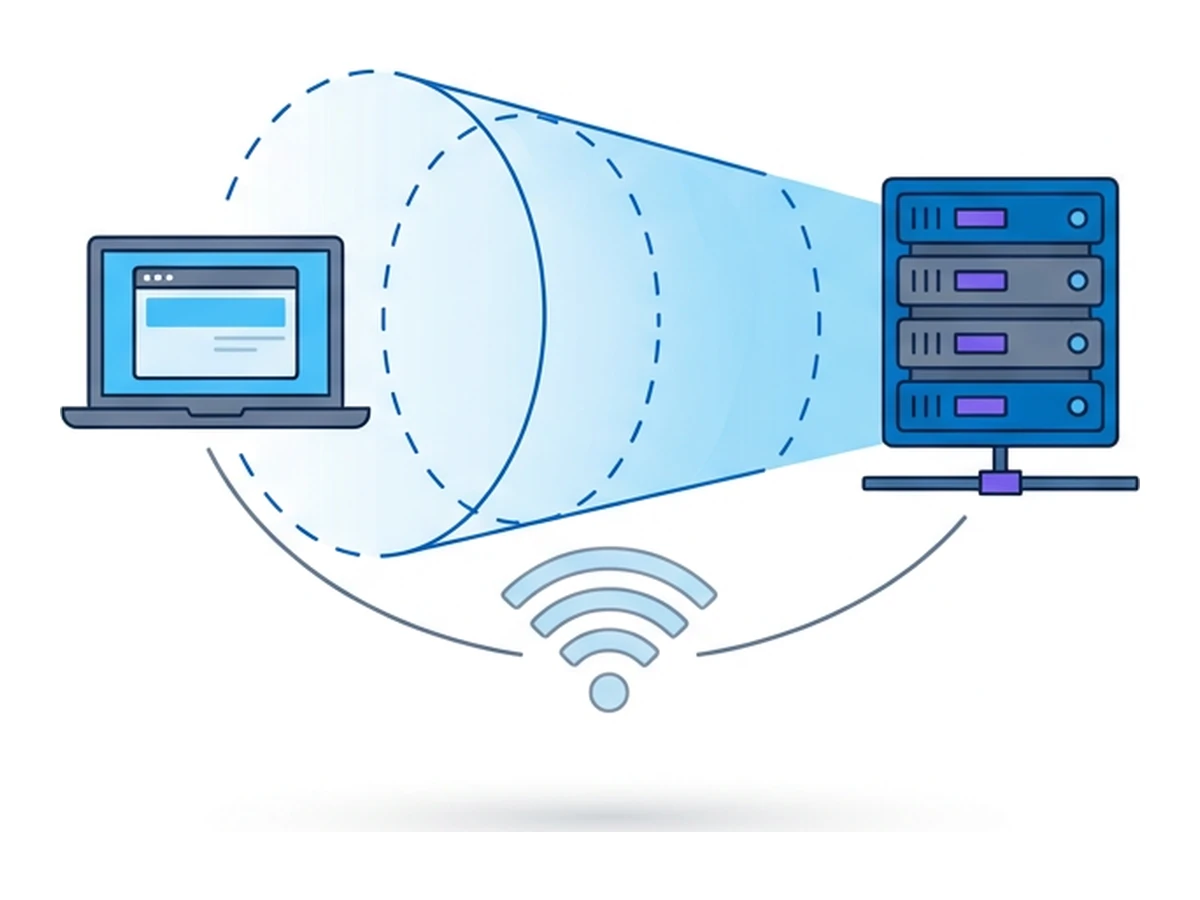
A VPN can carry device traffic through an encrypted tunnel to its provider, reducing what the local hotspot can inspect after the tunnel is established. The VPN provider becomes another party to trust. Coverage depends on the app, device settings, and whether the tunnel is connected; a captive portal may need to be completed first. A VPN does not make a phishing page trustworthy or replace HTTPS between your browser and the destination.
A Browser.lol session moves the browsing of destination sites to a remote environment. That can separate untrusted web content from your device, but your device still connects to Browser.lol over the local Wi-Fi. A malicious portal or a root certificate installed on your device remains a local risk, including for that connection. Remote browsing also does not validate a site's honesty for you. For a fuller comparison, see Virtual Browsers vs VPNs.
A practical checklist
Use the controls that address the actual risk on the network you joined.
- 1
Confirm the hotspot and limit sharing
Ask the venue for the exact network name. Turn off unneeded file sharing and remote access, and use your device's public or untrusted network setting where available. - 2
Check HTTPS and stop at certificate warnings
Before entering credentials, check the site address and secure connection. If the browser reports a certificate problem, stop and investigate instead of bypassing the warning. - 3
Treat portals and certificate prompts separately
A portal requesting terms or access details can be legitimate. Do not install a root certificate or enter unrelated account credentials just because a Wi-Fi page asks you to. - 4
Choose a VPN or remote browser for a specific need
A VPN can limit local network visibility when its tunnel is active. A remote browser separates visits to untrusted sites from your device. Neither makes phishing safe, fixes a compromised device, or guarantees that a session ends when you close a tab.
Need an isolated session for your next task?
Open an isolated desktop browser and get started in your browser.
Start a SessionNo browser installation required • Features vary by plan